





MEAP
> Application License Settings
> Adding License Files

| Adding License Files |
|
You can install license files for applications that are already installed. You can also increase counter values and extend terms of validity by adding a license file. |
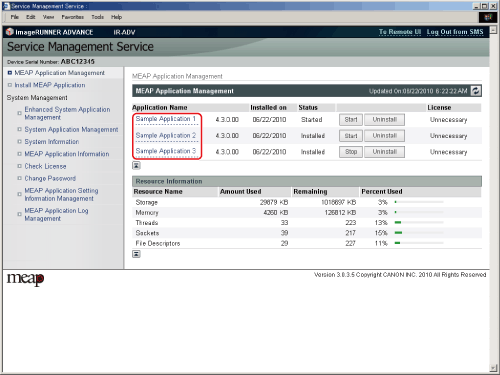
The [MEAP Application Management] page is displayed. |
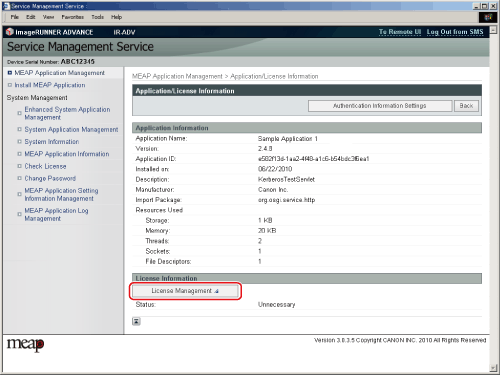
The [Application/License Information] page is displayed. |
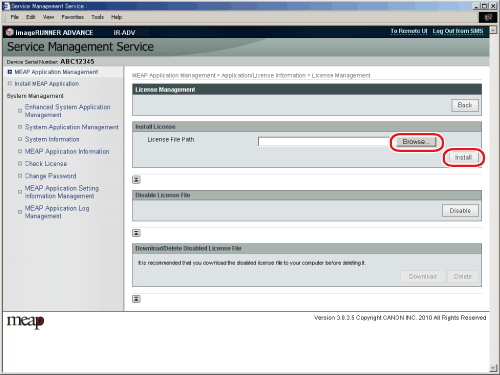
The [License Management] page is displayed. |
The message <Installing... Please wait.> is displayed. |
Depending on the application, a software license agreement screen may be displayed. Confirm the information displayed on the screen → click [OK]. Installation will start after the message <Installing... Please wait.> is displayed again.
|