Before You Start Using This Machine > Main Power and Control Panel Power > How to Turn ON the Main Power
*
How to Turn ON the Main Power

Return to Overview


This section explains how to turn ON the main power.


Remark
  • If you want to turn OFF the main power and then back ON again, wait for at least 10 seconds after the main power indicator is turned OFF before turning ON the main power.

  1. Make sure that the power plug is firmly inserted into the power outlet.
  • Do not connect or disconnect the power cord with wet hands, as this may result in electrical shock.
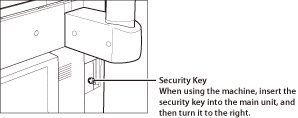
  1. If the Security Key is inserted into the machine, make sure that it is in the ON positions (turn it to the right).

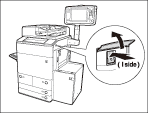
  1. Press the main power switch to the "I" side.

The main power indicator on the control panel lights when the main power switch is turned ON.

When operating the main power switch, open the main power switch cover.

  • If the main power indicator on the control panel does not light even though the main power switch is ON, be sure to check the breaker to see if it is OFF. (See "Problem Solving.")
  1. Various screens are displayed when system software is loading.

If you are using a login service, log in using the procedure for the login service you are using.

  • You can select which functions to display on the Basic Features screen when turning ON the main power, according to the Settings/Registration settings. (See "Default Screen at Startup.")
  • If a Macintosh, which has been shut down, is connected to the machine via a USB cable, when you turn the machine ON, the Macintosh may also turn ON. In this case, disconnect the Macintosh from the machine. (You may also be able to solve this problem by using a USB hub between the machine and the Macintosh).
  • If you are using Department ID Management with the Card Reader-C1/Copy Card Reader-F1, see "Optional Products (imageRUNNER ADVANCE C9075 PRO/C9065 PRO)" or "Optional Products (imageRUNNER ADVANCE C7065/C7055)."
  • If you are using Department ID Management, see "Basic Operations."
  • If you are using SSO-H, see "Basic Operations."

  • Back To Top