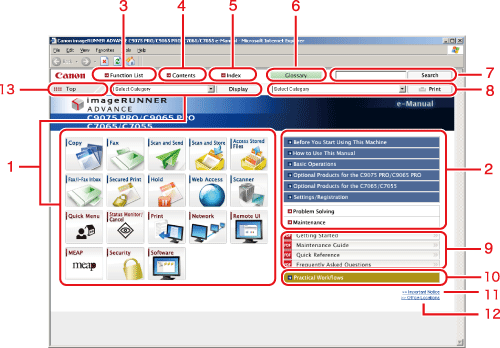
| 1 |
Function Categories
Select a category from the drop-down list and click [Display], or click the button to display a list of image icons. Click an image icon to display the topic pages.
If you click the [Display Function List] displayed in the list of image icons, a list of all the topic page titles is displayed. When there are also sub-categories, they can be selected from the drop-down list in the image icon list. |
2 |
Appendix Categories
Select an appendix category to display topic pages such as the maintenance and optional equipment topics. |
| 3 |
[Function List]
Click to display the topic pages for function categories. |
4 |
[Contents]
Click to display the contents for the function categories and appendix categories in a separate window. |
| 5 |
[Index]
Click to display the index for the function categories and appendix categories in a separate window. |
6 |
[Glossary]
Click to display the glossary in a separate window. |
| 7 |
[Search]
Click to display a list of the page titles that includes the phrase you enter and the category names that they belong to. Click a title to display the corresponding page. |
8 |
[Print]
Click to print all categories or a single category. When there are sub-categories, you can print them separately. |
| 9 |
PDF Guides
Click to display the Getting Started, Quick Reference, Maintenance Guide, and Frequently Asked Questions in the PDF format. |
10 |
[Practical Workflows]
Click to display the Practical Workflows that introduce functions of the machine for each purpose. |
| 11 |
[Important Notice]
Click to display important notices in a separate window. Only displayed when there are important notices. |
12 |
[Office Locations]
Click to display Canon contact details in a separate window. |
| 13 |
[Top]
Click to return to the top page. |
|
|