Copy > Area Designation > Using the Edit Pen
*
Using the Edit Pen

Return to Overview


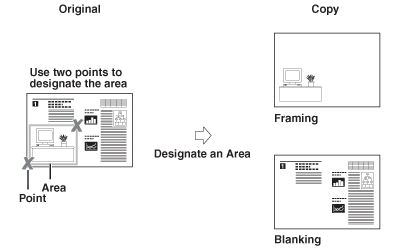
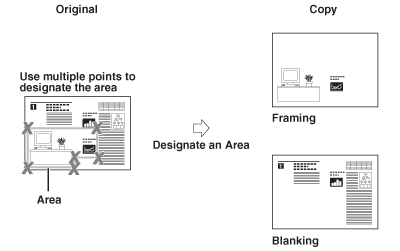
You can use the edit pen to designate two different types of areas: a rectangular area (two points) and a polygonal area (four points or more).

  • Use two points to designate the area

  • Use multiple points to designate the area


Remark
  • You can designate only one polygonal area at a time.
  • You cannot designate a rectangular area and a polygonal area at the same time.
  • You cannot copy or scan documents with the Area Designation mode if you place your originals in the feeder.

  1. Place your originals on the platen glass → press [Options] → [Area Designation].
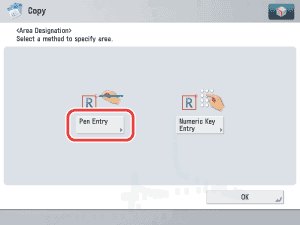
  1. Press [Pen Entry].

  1. Press [Start Scan].
  • Confirm that the original is placed on the platen glass.
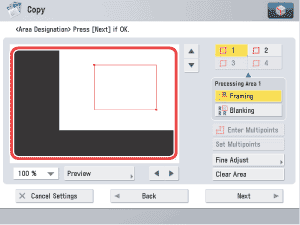
  1. Designate the area using the edit pen.
  • You cannot designate a rectangular area and a polygonal area at the same time.
  • To clear the last point entered, press [Erase Point]. (Once an area is designated, [Erase Point] changes to [Clear Area].)
  • To clear a designated area, press [Clear Area].
  • To zoom in on any area on the original, press the ratio drop-down list → select an enlargement ratio → press [], [], [], or [] to display the desired area.
  • To designate a rectangular area with two points:
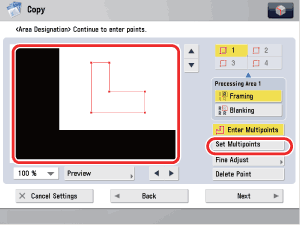
  • To designate an area with multiple points:

  • To designate a rectangular area with two points:
  • Designate two opposing points with the edit pen.

You can designate up to four different areas.


  • To designate an area with multiple points:
  • Press [Enter Multipoints] → specify the area with the edit pen.
  • After designating the last point, press [Set Multipoints].

You can designate up to 10 points.

  • If you select [Enter Multipoints], only one area can be designated at a time.
  • An area that is designated by selecting [Enter Multipoints], cannot be modified using - (numeric keys).

  1. Select [Framing] or [Blanking].

Details of each item are shown below.

[Framing]: Copy only the contents of the designated area while discarding the rest of the original.
[Blanking]: Copy the original by blanking out the contents of the designated area.

If you want to use different settings for different areas, select the area by pressing the appropriate area key → select [Framing] or [Blanking].

  1. Press [Preview] → check the designated area → press [OK].
  • If the designated area is rectangular, and you want to continue designating other areas, repeat steps 3 to 5. Areas that have already been designated are displayed with the new area.
  • To modify a designated area that was specified using the edit pen, press [Area Fine Adj.] → [Point select] until the screen displays the desired point that you want to modify → press [], [], [], or [] to move the point → press [OK] → [Preview] to check the modified area.
  1. Press [Next] → select [Shift center] or [Do not shift center].

If only [Blanking] is selected, this step is unnecessary. Skip to step 8.

  • If the Center Shift mode is already specified beforehand, the Center Shift Settings screen does not appear.
  • The Center Shift settings specified within the Area Designation mode are deleted when the area settings are canceled.
  1. Press [OK].

If you need to designate the same area for multiple originals, remove the original from the platen glass → place all of the originals in the feeder → press (Start).


  • Back To Top