Copy > Document Scan Lock > Adjusting the TL Code

*
Adjusting the TL Code

Return to Overview


You can adjust the size, density, and color of dots embedded in the document.


  1. Place your originals → press [Options] → [Document Scan Lock].
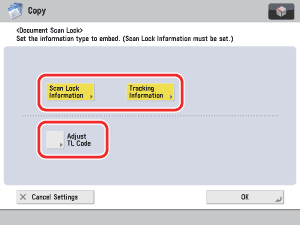
  1. Set [Scan Lock Information] or [Tracking Information] → press [Adjust TL Code].

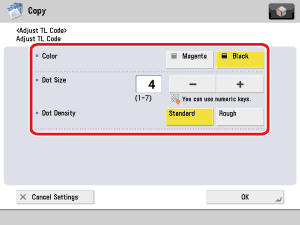
  1. Adjust the TL code.

  • If you want to adjust the color of the dots:
  • If you want to adjust the size of the dots:
  • If you want to adjust the density of the dots:

  • If you want to adjust the color of the dots:
  • Select [Magenta] or [Black].

If there are dark colored illustrations or images in the document, we recommend that you select [Black].


  • If you want to adjust the size of the dots:
  • Press [-] or [+] to set the size of the dots.

The appropriate dot size differs according to the environment or the content of the document. We recommend that you check documents embedded with a TL code to see whether you can correctly analyze the tracking information and whether the TL code helps restrict copying.

  • Any value from 1 to 7 may be used.

  • If you want to adjust the density of the dots:
  • Select [Standard] or [Rough].

If there are many illustrations or images in the document, we recommend that you select [Standard].


  1. Press [OK].

  • Back To Top