Copy > Document Scan Lock > Scan Lock Information

*
Scan Lock Information

Return to Overview


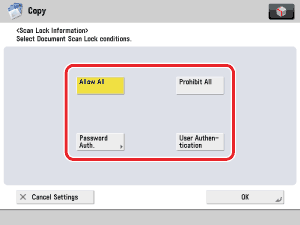
You can embed TL code on the document to restrict unauthorized copying. You can select the following four types of restriction.

  • Allow All
    Documents can be copied.
  • Prohibit All
    Documents have copying restriction. You cannot copy documents when Prohibit All is detected.
  • Password Authentication
    Documents have copying restriction. You can copy only if the authentication process is successful.
  • User Authentication
    Documents have copying restriction. You can set User Authentication restriction if the Department ID Management or authentication by SSO-H is set. You can copy only if the Department ID or user name matches.

Remark
  • When copying documents set with [Password Authentication] or [User Authentication], the embedded information on the first page is used for authentication. In the following case, the job will be canceled:
  • When the embedded information on the first page differs from the embedded information on the second and subsequent pages (for example, when copying a document with the password '1234567' embedded on the first page, and the password '9876543' embedded on the second page)

  1. Place your originals → press [Options] → [Document Scan Lock].
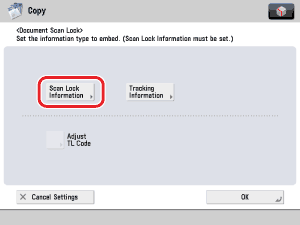
  1. Press [Scan Lock Information].

  1. Select the Scan Lock condition ([Allow All], [Prohibit All], [Password Auth.], or [User Authentication]).

  • If [Password Auth.] is selected:

  • If [Password Auth.] is selected:
  • Press [Password] → enter the password → press [Next].
  • The number of characters for the password must be more than 4 but less than 11.
  • Enter the same password to confirm the password → press [OK].

  1. Press [OK].

  • Back To Top