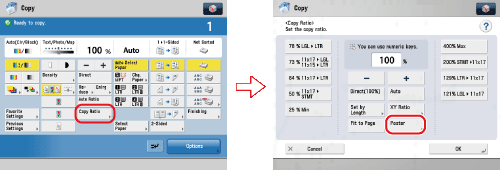
Copy > Making a Copy With the Express Copy Basic Features Screen > Enlarging an Image onto Multiple Pages (Poster)

*
Enlarging an Image onto Multiple Pages (Poster)

Return to Overview


For instructions on this procedure using the Regular Copy Basic Features screen, see "Poster."


Remark
  • Place your original on the platen glass. The Poster mode cannot be used if the original is placed in the feeder.
  • If you set the Poster mode while the color mode is set to 'Auto (Color/Black)', the color mode is automatically set to 'Full Color'.
  • The Poster mode cannot be used to make copies on Custom Size paper, envelopes, transparencies, and tab paper.

  1. Press [Copy Ratio] → [Poster].

  1. Select [Copy Ratio] or [Number of Output Pages] → press [Next].
  • If [Copy Ratio] is selected:
  • If [Number of Output Pages] is selected:

  • If [Copy Ratio] is selected:
  • Use the numeric keys or press [-] or [+] on the touch panel display to enter a copy ratio → press [OK].

  • If [Number of Output Pages] is selected:
  • Press [Change] → select the size of paper → press [OK].

If the Multi-Purpose Tray is selected, you can also specify the paper size and paper type used in the Multi-Purpose Tray.

  • Select the number of output pages → press [OK].
  • The number of output pages that you have selected is used as a guideline. The actual number of output pages may be less than what you have selected, depending on a combination of factors that determine the most appropriate number of pages. These factors include the size of the original, the selected paper size, and the enlargement ratio.

  • Back To Top