Copy > Frame Erase > Book Frame Erase
*
Book Frame Erase

Return to Overview


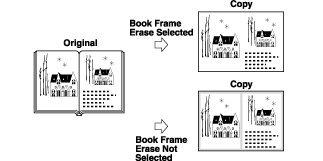
This mode erases the dark border, as well as center and contour lines that appear if you are copying facing pages in a book or bound original onto a single sheet of paper.


  1. Place your original on the platen glass → press [Options] → [Erase Frame].
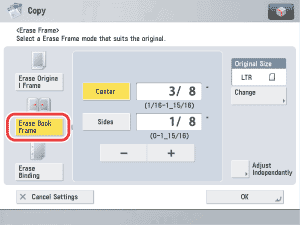
  1. Press [Erase Book Frame].

  1. Specify the frame erase widths.
  • If you want to set the same width for all four borders:
  • If you want to set the top, left, center, right, and bottom widths independently:

  • If you want to set the same width for all four borders:
  • Press [Center] and [Sides] → press [-] or [+] to set their respective frame erase widths.

  • If you want to set the top, left, center, right, and bottom widths independently:
  • Press [Adjust Each Dim.].
  • Select the desired frame erase borders → press [-] or [+] to set their respective frame erase widths.

To return to the screen for setting the same width for all four borders, press [Adjust All At Once].


  1. Press [Change] → select the size → press [OK] → [OK].
  • You can set the Book Frame Erase mode only for the original paper sizes shown on the touch panel display.
  • To select an A or B series paper size, press [A/B-size].

  • Back To Top