Copy > Frame Erase > Original Frame Erase

*
Original Frame Erase

Return to Overview


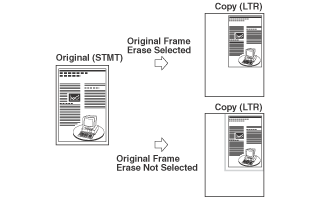
This mode erases the dark borders and frame lines that appear around the copy if the original is smaller than the selected paper size. You can also use this mode to create a blank border around the edge of the copy.


  1. Place your originals → press [Options] → [Erase Frame].
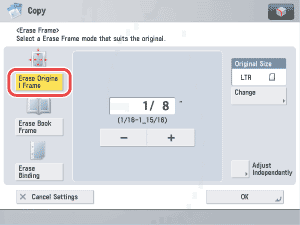
  1. Press [Erase Original Frame].

  1. Press [-] or [+] to set the frame erase width.
  • If you want to set the same width for all four borders:
  • If you want to set the top, left, right, and bottom widths independently:

  • If you want to set the same width for all four borders:
  • Press [-] or [+] to set the width of frame erase. You can also use the numeric keys to enter values.

  • If you want to set the top, left, right, and bottom widths independently:
  • Press [Adjust Independently].
  • Select the desired frame erase borders → press [-] or [+] to set their respective frame erase widths → press [Next].

To return to the screen for setting the same amount of space for all four borders, press [Uniform Gutter].


  1. Press [Change] → select the size → press [OK] → [OK].
  • You can set the Original Frame Erase mode only for the original paper sizes shown on the touch panel display.
  • To select an A or B series paper size, press [A/B-size].

  • Back To Top