





Copy
> Changing the Copy (Zoom) Ratio
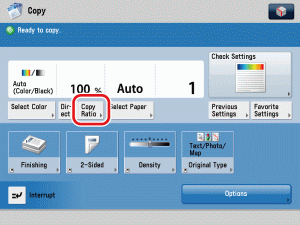
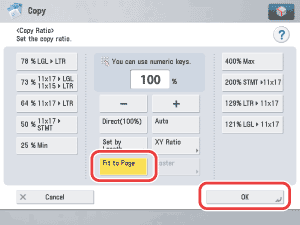
> Fit to Page

| Fit to Page |
|
If you are copying an original with an image that extends all the way to the edges onto the same size paper at a copy ratio of 100%, the periphery of the original image may be cut off slightly on the copy. However, if you set the Fit to Page mode, the image is slightly reduced so that the entire image is copied without being cut off. |
| Remark |
|
|
|||||
|
|
|
 (Start).