Copy > Changing the Copy (Zoom) Ratio > Auto Zoom
*
Auto Zoom

Return to Overview


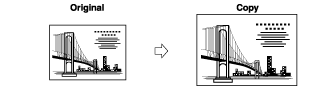
You can set the machine to automatically select the appropriate copy ratio based on the size of the original and the selected copy paper. The same copy ratio is used for the horizontal (X) and vertical (Y) axes. Any copy (zoom) ratio from 25% to 400% can be set.


Remark
  • You cannot copy highly transparent originals, such as transparencies, using the Auto setting on the Copy Ratio screen. Use the preset Zoom or Zoom by Percentage mode instead.
  • To use the Auto setting on the Copy (Zoom) Ratio screen, your originals must conform to one of the standard paper sizes: 11" × 17", LTR, LTRR, LGL, STMT, or STMTR.
  • If you notice a difference between the automatic copy ratio and the actual copy size, you can try to eliminate this error by adjusting the setting in [Fine Adjust Zoom]. (See "Fine Adjust Zoom.")
  • To cancel this setting, press [Copy Ratio] → [Auto Ratio].

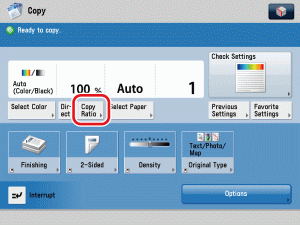
  1. Place your originals → press [Copy Ratio].

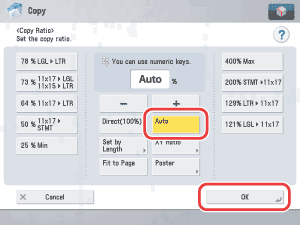
  1. Press [Auto] → [OK].

  • If you set [Auto], you have to select a paper size manually. If you do not select a paper size, the copy ratio is automatically set to match the size of paper loaded in paper drawer 1.
  1. Press (Start).
  • If the original is placed on the platen glass, the copy ratio automatically appears when the feeder/platen cover is closed, provided that the original size can be detected.
  • If the original is placed in the feeder, the copy ratio appears when (Start) is pressed.

  • Back To Top